> For the complete documentation index, see [llms.txt](https://docs.oceanenterprise.io/llms.txt). Markdown versions of documentation pages are available by appending `.md` to page URLs; this page is available as [Markdown](https://docs.oceanenterprise.io/user-guides/using-the-oe-marketplace/onboarding-to-the-marketplace/setting-up-the-ssi-wallet.md).
# Setting up the SSI wallet
Add DIDs and Verifiable Credentials to the SSI wallet to publish and consume assets in an SSI-enabled OE marketplace
In an SSI-enabled marketplace, publishers require a Decentralized ID (DID) to sign the asset's DDO, thereby proving its provenance. Furthermore, consumers must present Verifiable Credentials to access assets. DIDs and VCs must be added to the SSI wallet for the OE marketplace to access them.
Depending on their setup and security requirements, participants in a dataspace can use either the default SSI wallet instance provided by the dataspace or their own instance.
Setting up the SSI wallet means:
1. adding DIDs to the wallet, and
2. adding Verifiable Credentials to the wallet
## Concepts
**Self-Sovereign Identity (SSI)** is a digital framework that gives individuals and organizations full ownership and control over their data by allowing them to store and share verified credentials (VC) directly, without relying on a third party. SSI reduces operational risk and costs by eliminating the need to store sensitive data in vulnerable central databases, while simultaneously streamlining onboarding through instantly verifiable, high-trust digital credentials.
**Verifiable Credential (VC)** is the digital equivalent of physical documents - like a diploma or passport - that are cryptographically signed by an issuer so they can be instantly verified as authentic without the verifier needing to contact the original source.
A **Decentralized Identifier (DID)** is a small, secure file - usually stored on a decentralized ledger - that contains your public keys and service endpoints, allowing others to verify your digital signatures and communicate with you directly.
## Preconditions
* The user must have a minimum understanding of SSI concepts, such as cryptographic key, DID, DID method, and Verifiable Credential
* The SSI wallet instance has been installed and configured, as described in [this chapter](/infrastructure/ssi-stack-installation-and-configuration.md).
* The user has logged in to Metamask.
## Steps
To set up the SSI wallet, perform the following steps:
1\. Connect to the SSI wallet's user interface by accessing the SSI wallet instance URL.
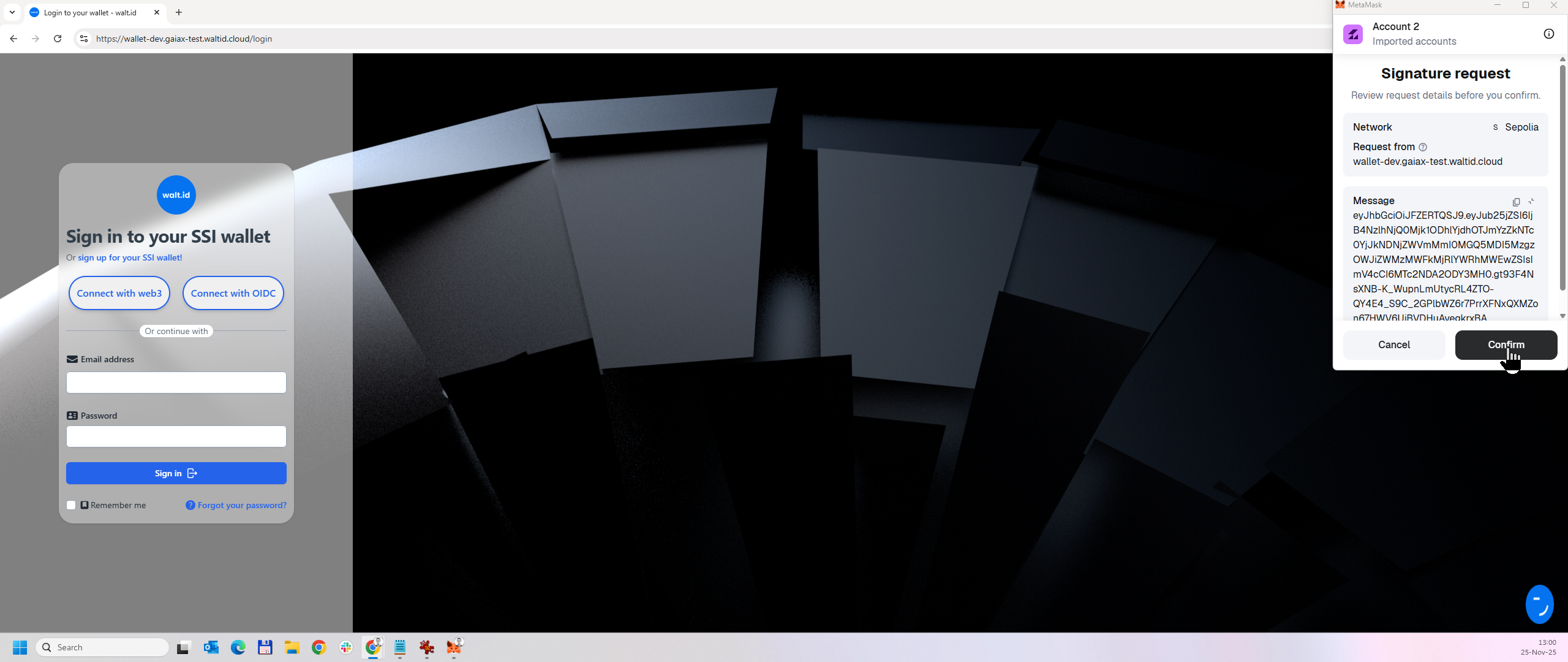
2\. The login screen of the SSI wallet is displayed.
3\. Click the "**Connect with web3**" button. A MetaMask notification message for a signature request appears on the screen.
4\. Click "**Confirm**". The Select wallet screen is displayed. Press "**View wallet**".
5\. The main menu of the SSI wallet is displayed.
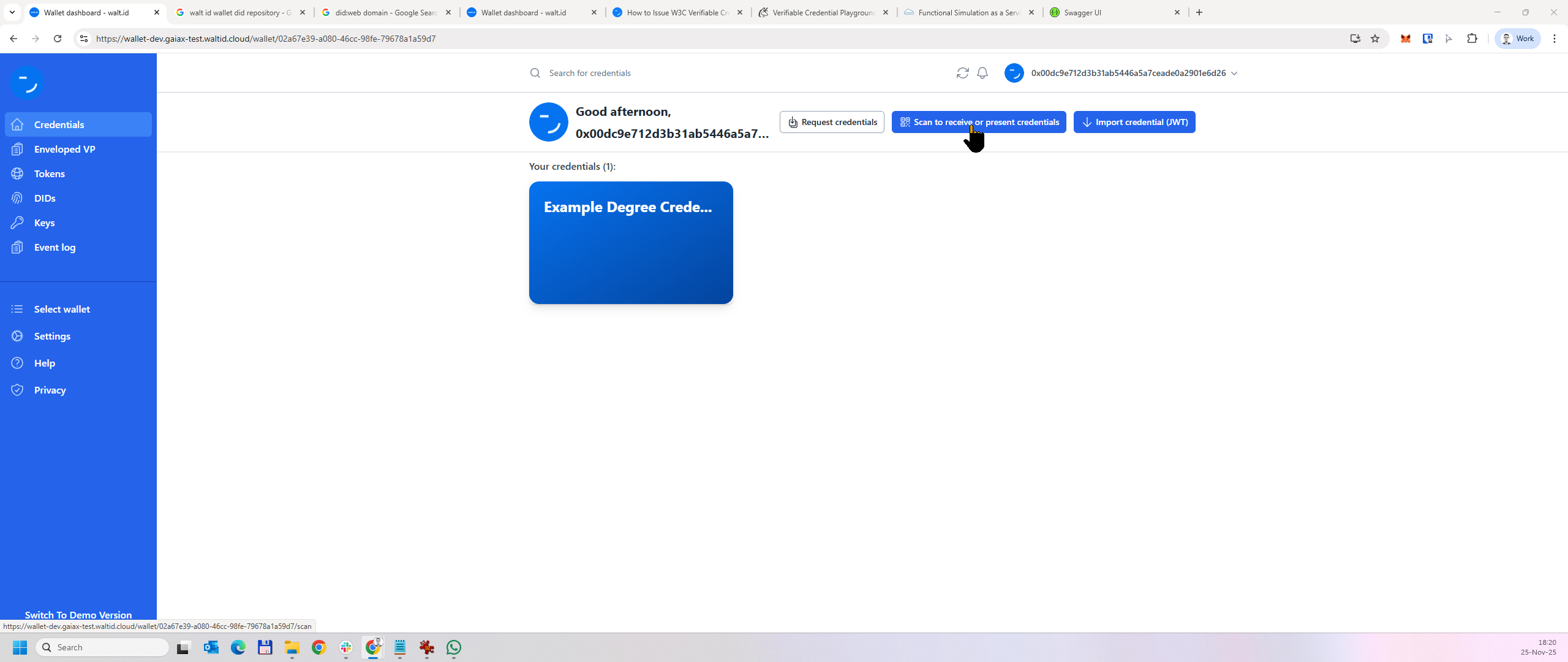
From the SSI wallet's user interface, users can manage the cryptographic keys, DIDs, and Verifiable Credentials associated with their account.
**Note**: First time the user connects to the SSI wallet instance, a DID named "Onboarding", of type JWK, and a corresponding key are created by default. You can choose to delete or keep them.
6\. **Adding DIDs to the SSI wallet**
There are two methods to add a DID to the SSI wallet: create a new DID or import an existing DID
* **Create a new DID**
* From the left side menu, click "**DIDs**"
* The DIDs menu is displayed. Click "**New**".
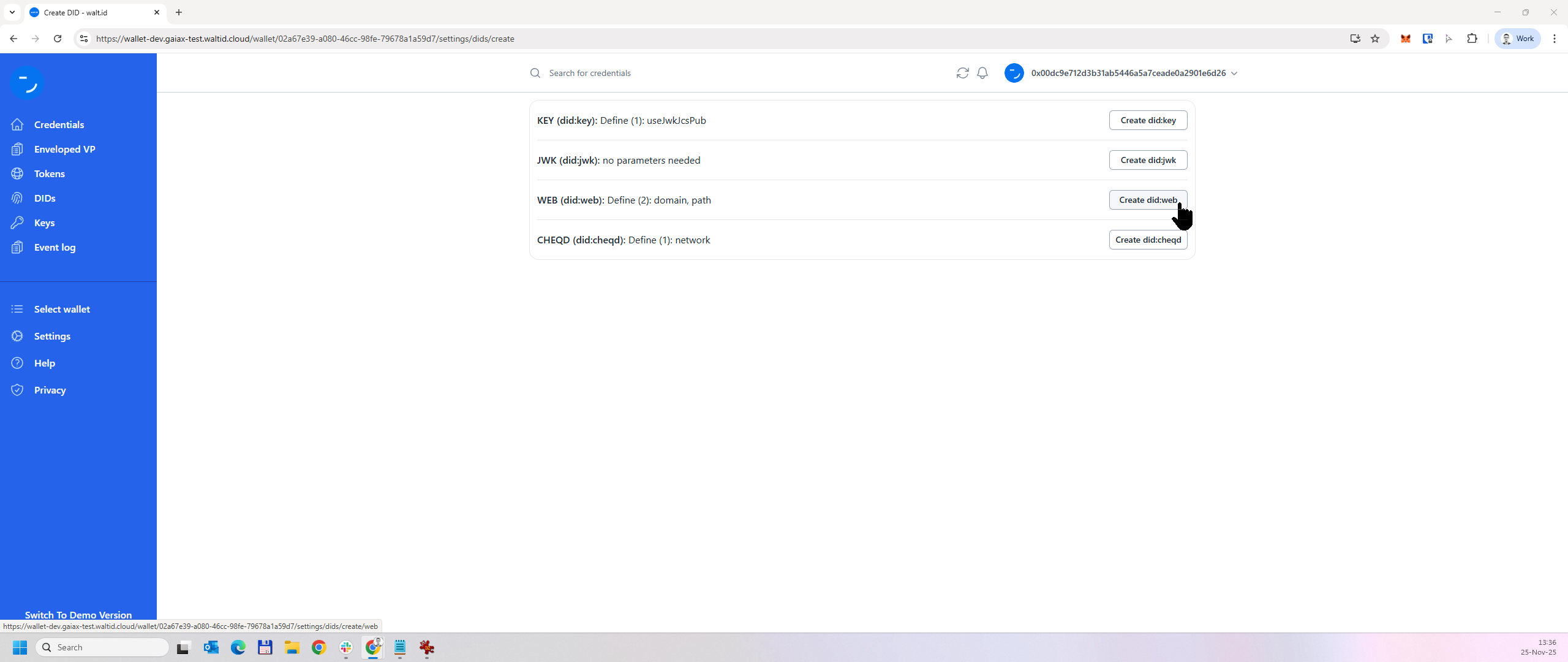
* The DID types menu is displayed. From here, the user can choose the type of DID they want to create. did:key and did:jwk are primarily used in testing scenarios, while did:web is used for production cases. The following steps show how to create a did:web. Click "**Create did:web**"
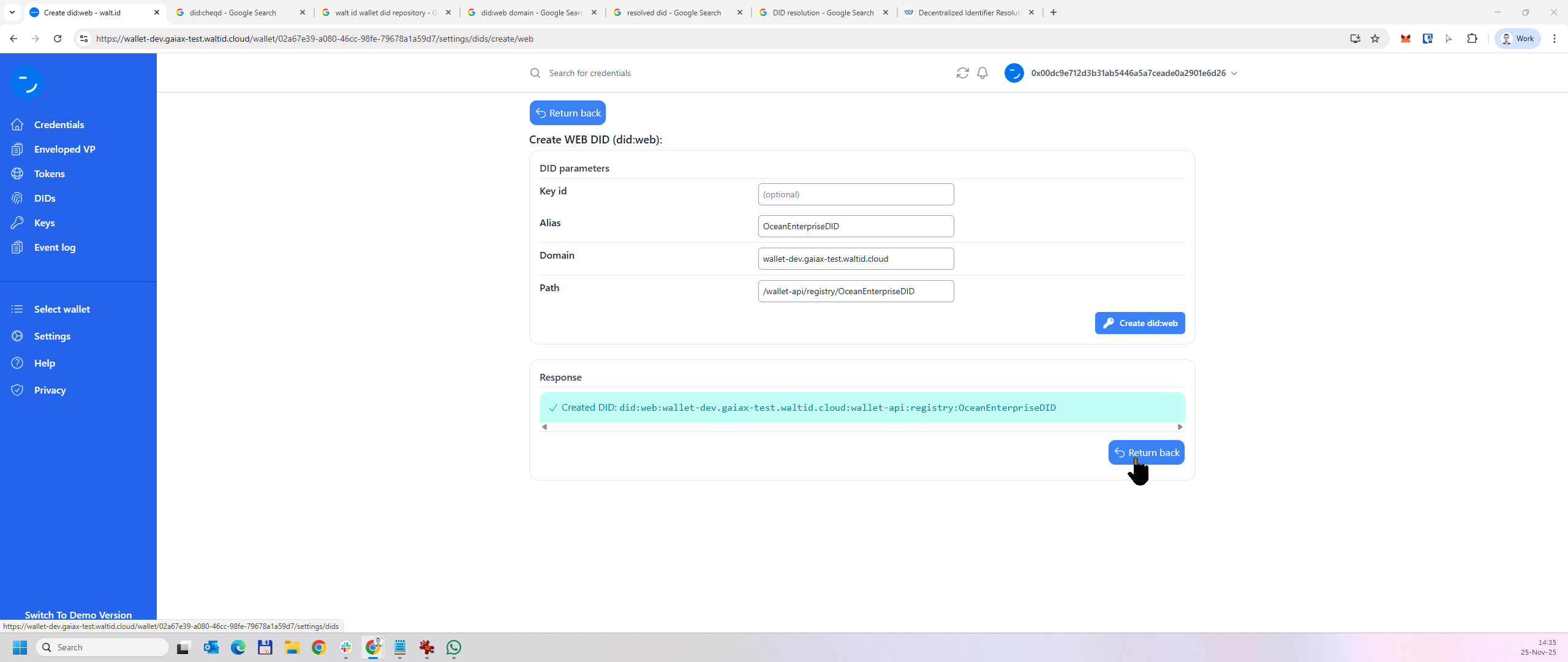
* The **Create WEB DID (did:web)** screen is displayed.
* **Key id field**: enter the name of an existing key to be assigned to the DID, or leave it blank so a new key will be generated and attached to the DID.
* **Alias:** enter an alias for the DID.
* **Domain**: if you want the DID to be resolved (retrieved by a DID resolver using the did:web method), enter the domain where the DID is located (e.g. *example.com*). Please note that the SSI wallet instance comes with a web registry where DIDs of type did:web can be hosted. If you want to use the web registry provided by the SSI wallet instance, enter the hostname of the wallet instance in this field.
* **Path**: Multiple DIDs can be hosted under one domain by using paths. Enter the path where the DID is located. If you use the web registry provided by the SSI wallet instance, enter `/wallet-api/registry/` in this field.
* Click "**Create did:web**". An information message is displayed indicating that the DID has been created.
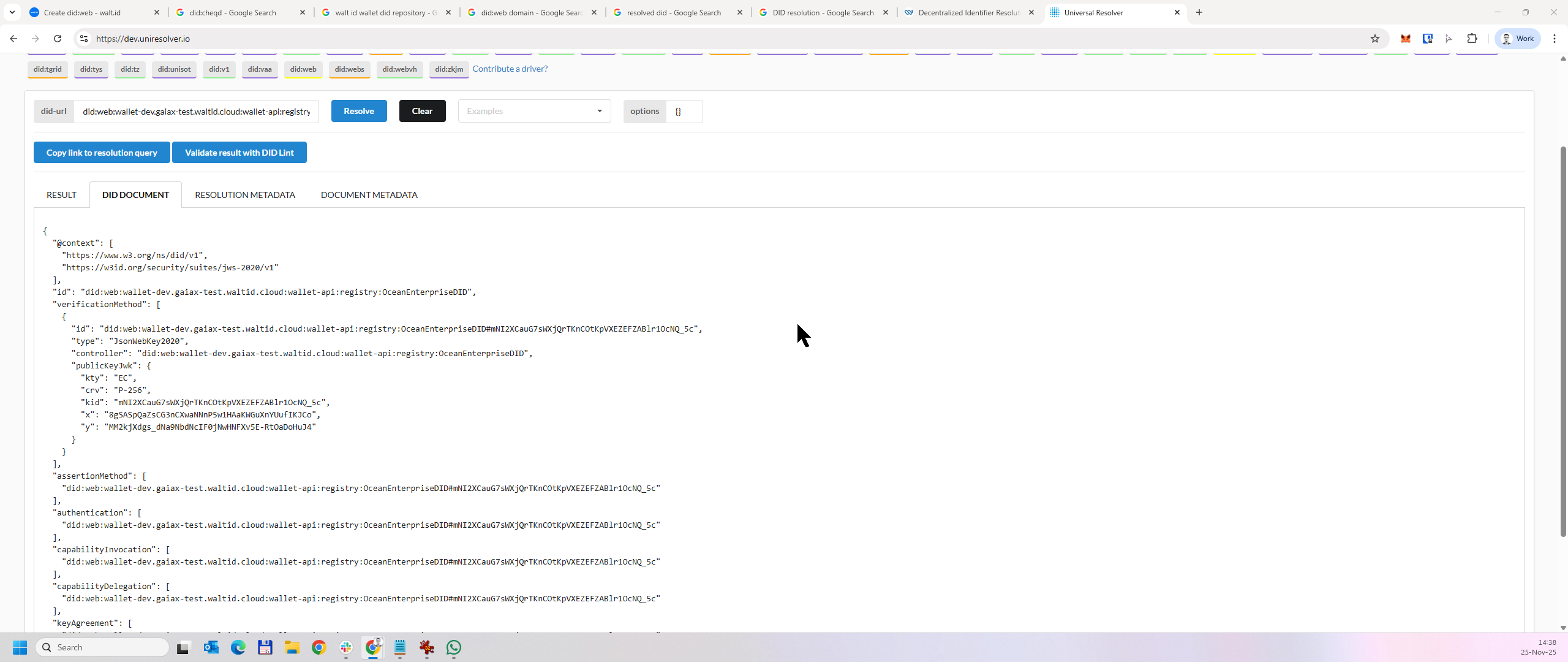
* To test that the DID can be resolved, go to , enter the DID in the did-url field, and click **Resolve**. The DID document should be retrieved and displayed.
* **Import an existing DID**
* From the left side menu, click "**DIDs**"
* The DIDs menu is displayed. Click "**Import**".
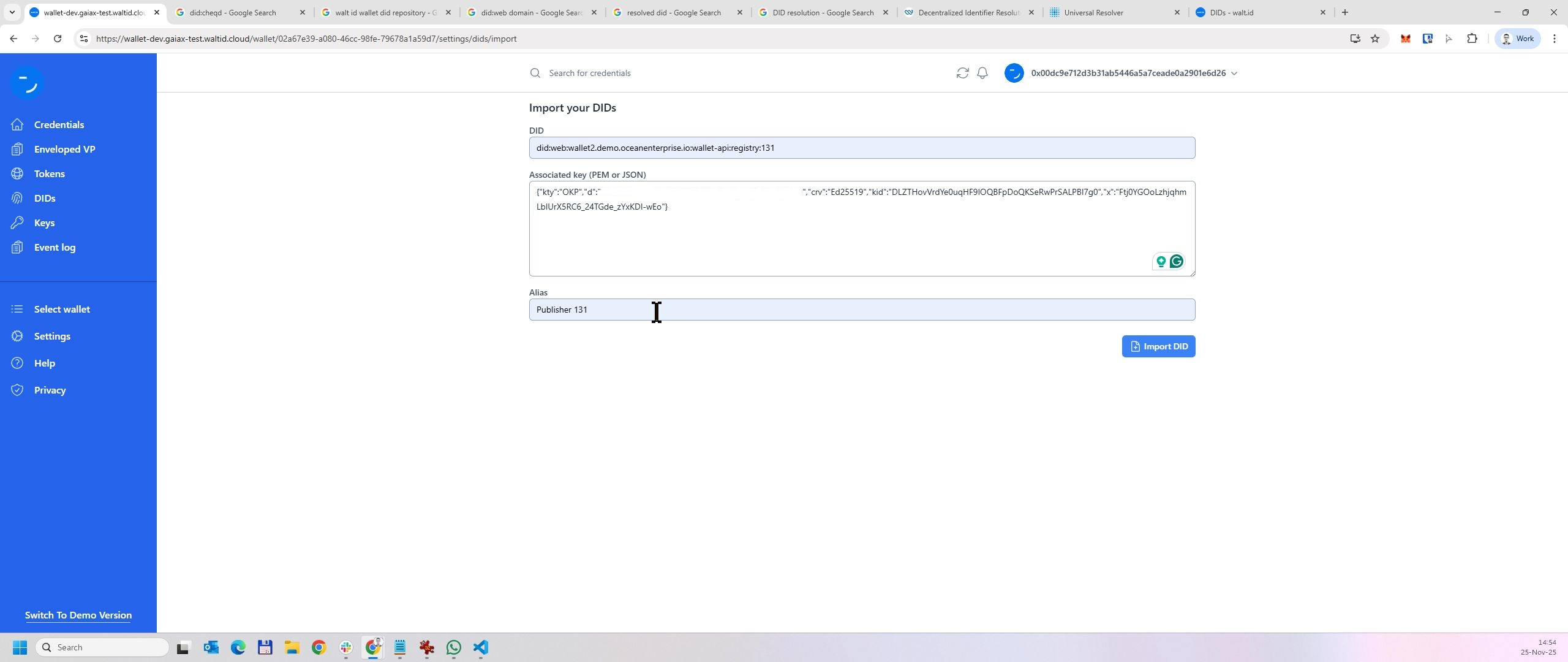
* The "**Import your DIDs**" screen is displayed.
* **DID**: enter the DID that is imported
* **Associated key (PEM or JSON)**: enter the private key of the DID in either PEM of JSON format
* **Alias**: provide an alias for the imported DID
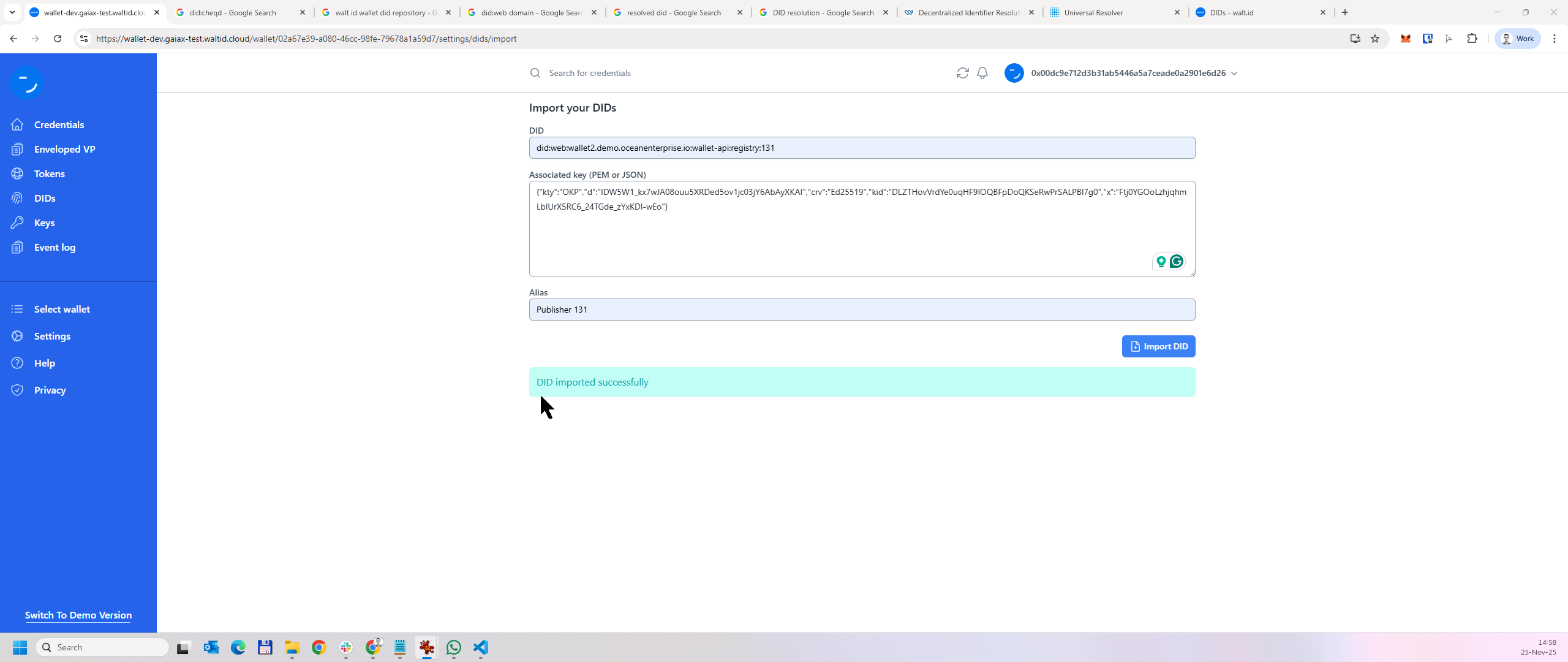
* Click **Import DID.** An information message is displayed indicating that the DID has been imported.
7\. **Adding Verifiable Credentials to the SSI wallet**
There are two ways to add Verifiable Credentials to the SSI wallet: import existing credentials (in JWT format) or receive credentials during the credential-issuing process based on the OID4VCI (OpenID for Verifiable Credential Issuance) protocol.
* **Import existing Verifiable Credentials in JWT format**
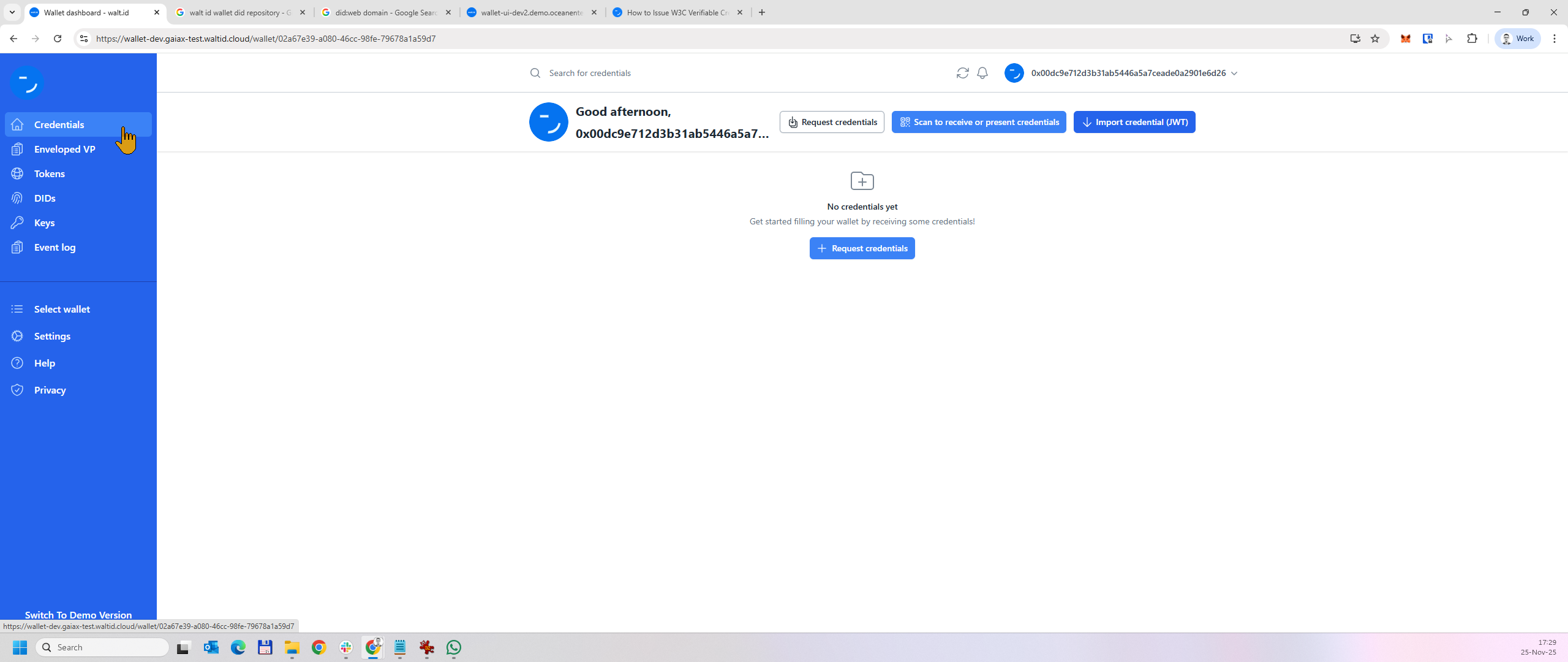
* From the main menu, click "**Credentials**".
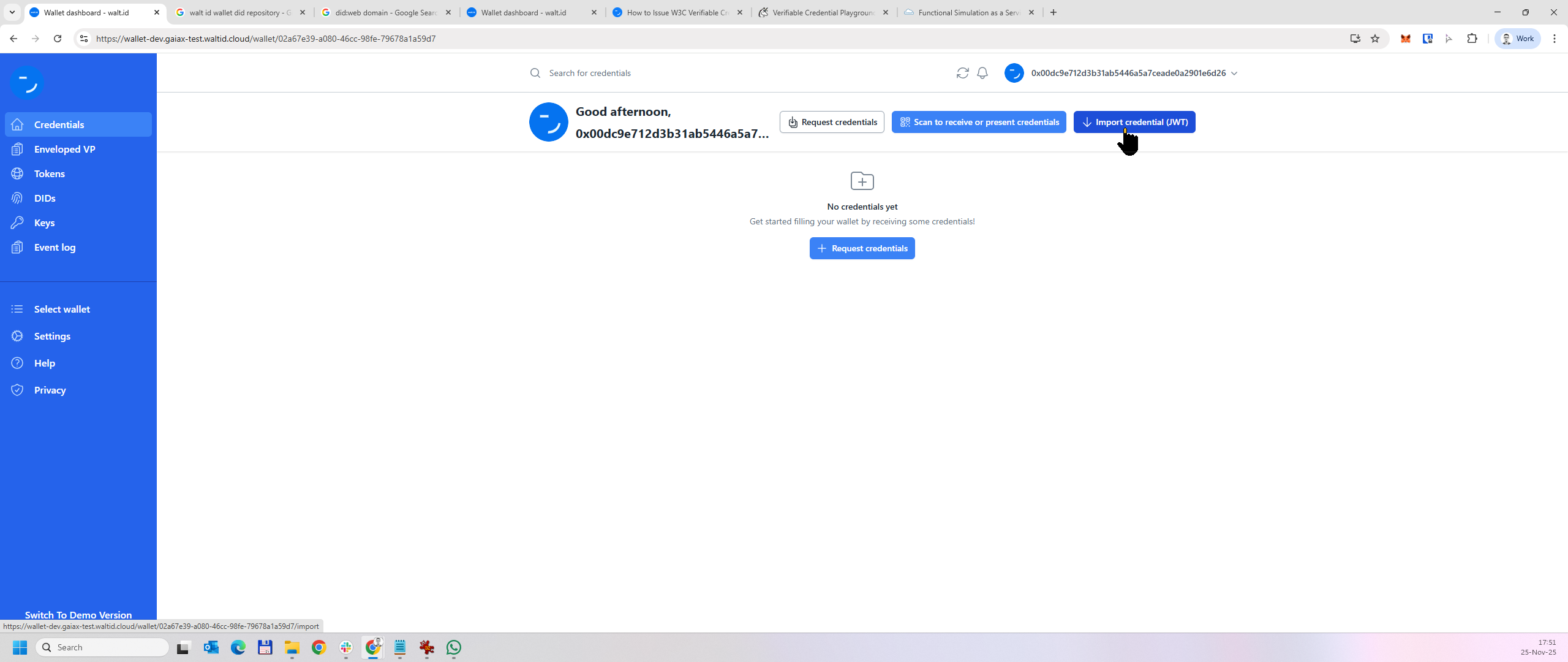
* The Credentials page is displayed. Click "**Import credential (JWT)**."
* The Import Credential (JWT) page is displayed.
* **Signed VC JWT**: paste the signed VC.
* **Associated DID**: select the DID associated with the imported VC.
* Click "**Import credential**". An information message is displayed indicating that the VC has been imported.
* You can then find the imported VC in the Credentials page.
* **Receive credentials during the credential-issuing process**
* In the credential issuance process based on the OID4VCI protocol, a credential issuer component receives a credential issuance request that includes the raw credential data (the information to be issued as a VC) and the data that identifies the VC's issuer (the issuer's DID and private key). Then, the credential issuer component generates an OID4VC offer URL that any OID-compliant wallet can accept to receive credential(s). More details on the credential issuance process based on the walt.id SSI stack can be found [here](https://docs.walt.id/community-stack/issuer/api/credential-issuance/vc-oid4vc).
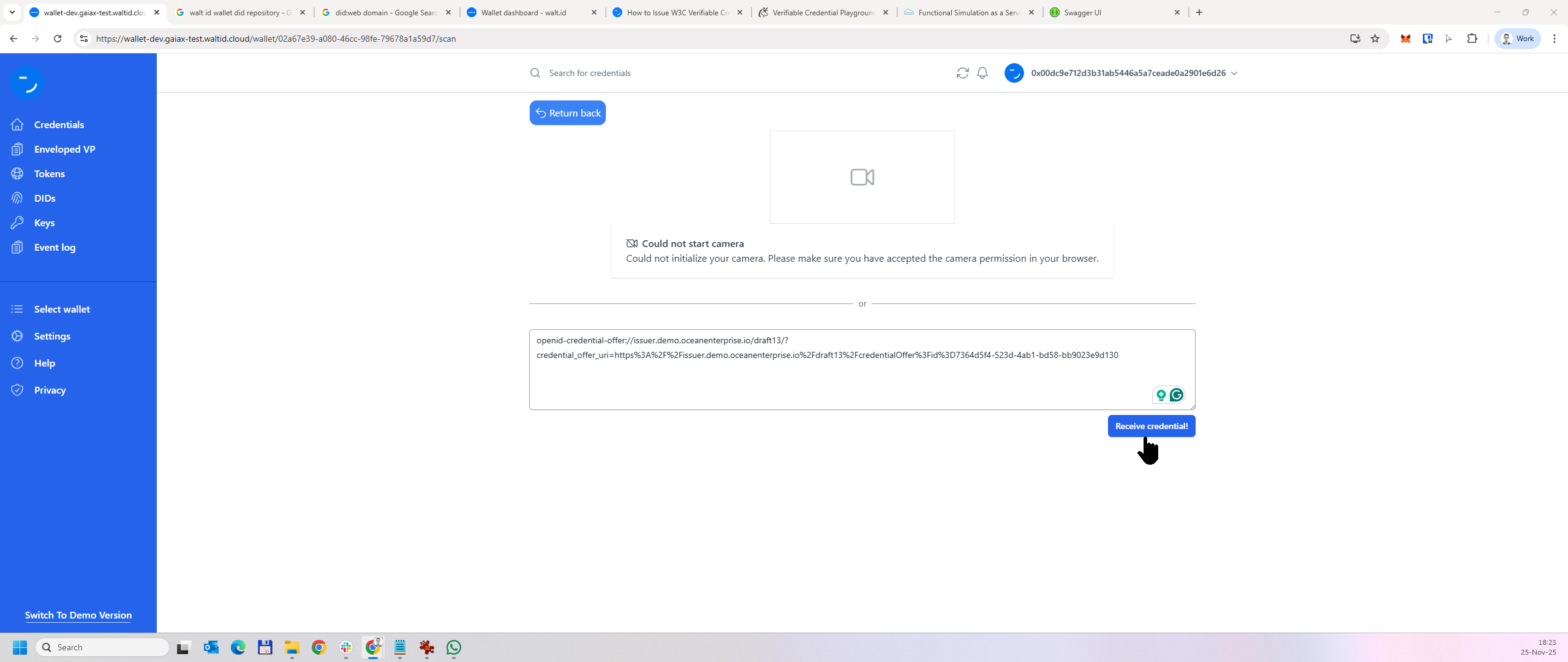
* To receive a credential through an OID4VC offer URL, from the "Credentials" screen click "**Scan to receive or present credentials**".
* The screen to receive credentials is displayed. Enter the OID4VC offer URL in the input field and click "**Receive credential**".
* The Receive single credential screen is displayed, indicating the credential issuer component from which the credential will be received and the credential type.
* **Select DID**: from this dropdown list, select the DID associated with the received VC.
* Press "**Accept**". The VC will be added to the wallet and displayed on the Credentials screen.
---
# Agent Instructions
This documentation is published with GitBook. GitBook is the documentation platform designed so that both humans and AI agents can read, navigate, and reason over technical content effectively. Learn more at gitbook.com.
## Querying This Documentation
If you need additional information that is not directly available in this page, you can query the documentation by asking a question.
Perform an HTTP GET request on the following URL with the `ask` and `goal` query parameters:
```
GET https://docs.oceanenterprise.io/user-guides/using-the-oe-marketplace/onboarding-to-the-marketplace/setting-up-the-ssi-wallet.md?ask=&goal=
```
`ask` is the immediate question: it should be specific, self-contained, and written in natural language.
`goal` is what the user is ultimately trying to achieve, the reason they need the answer. Sharing it helps GitBook give you a better, more relevant answer. A goal is most helpful when it describes the outcome the user wants rather than restating the question. For example, with `ask=how do I create an API token`, a goal like `automate deployments from our CI pipeline` lets GitBook tailor the answer to that use case.
The response will contain a direct answer to the question and relevant excerpts and sources from the documentation.
Use this mechanism when the answer is not explicitly present in the current page, you need clarification or additional context, or you want to retrieve related documentation sections.