> For the complete documentation index, see [llms.txt](https://docs.oceanenterprise.io/llms.txt). Markdown versions of documentation pages are available by appending `.md` to page URLs; this page is available as [Markdown](https://docs.oceanenterprise.io/infrastructure/user-management-package/deployment-steps/post-installation-steps.md).

# Post-installation steps

Once the installation completes, the User Management Package services are running and configured to work together; however, except for the Signer Server, they are not yet populated with any dataspace‑specific items. No users are registered in the Authentik server, no Participant Authentik servers are onboarded to the Dataspace Operator’s Authentik instance for federated authentication, and no DIDs or SSI credentials are stored in the SSI Wallet API.&#x20;

Perform the following steps to verify that all services are operating correctly and to begin populating the repositories of your deployed services.

## Verify the availability of each deployed service

The User Management Package deploys 4 main services (Authentik server, Signer Server, SSI Wallet API, and SSI Wallet UI) and two support services (PostgreSQL and Traefik).

The table below uses the default port for each main service, as listed in the [TCP Ports Configuration](/infrastructure/user-management-package.md#tcp-ports-configuration) chapter.&#x20;

<table><thead><tr><th width="137">Service</th><th>URL</th><th>Comments</th></tr></thead><tbody><tr><td>Authentik</td><td><code>https:&#x3C;server_FQDN>:9443</code></td><td>Accessible directly through the server's hostname.</td></tr><tr><td>Signer Server</td><td><code>https:&#x3C;server_FQDN>:8443</code></td><td>Accessible directly through the server's hostname.</td></tr><tr><td>SSI Wallet API</td><td><code>https:&#x3C;wallet-api-FQDN></code></td><td>Accessible through the Traefik service, on port 443.</td></tr><tr><td>SSI Wallet UI</td><td><code>https:&#x3C;wallet-api-FQDN></code></td><td>Accessible through the Traefik service, on port 443.</td></tr></tbody></table>

### Verify the connection to the Signer Server

Access the Signer Server health endpoint (`https:<server_hostname>:8443/api/v1/health` ) and confirm that the service status is ok.

<figure><img src="https://1789397093-files.gitbook.io/~/files/v0/b/gitbook-x-prod.appspot.com/o/spaces%2FH0zpgrXbeZ7u6UuCV9Gz%2Fuploads%2FWeWUC70G0fpyiEZoyjJ8%2Fimage.png?alt=media&amp;token=fdf9e7a4-615a-4903-9b20-405eb6bd68b7" alt=""><figcaption></figcaption></figure>

### Verify the connection to the SSI Wallet API

Access the SSI Wallet API URL (`https:<wallet-api-FQDN>`) and check that the Swagger interface of the service is displayed.

<figure><img src="https://1789397093-files.gitbook.io/~/files/v0/b/gitbook-x-prod.appspot.com/o/spaces%2FH0zpgrXbeZ7u6UuCV9Gz%2Fuploads%2FiUnzcD5iyMYu4ZMiN6OM%2Fimage.png?alt=media&amp;token=f2bca6c9-5398-47b6-a994-3c913476fd3d" alt=""><figcaption></figcaption></figure>

### &#x20;Verify the connection to the SSI Wallet UI

Access the SSI Wallet UI URL and check that the login screen is displayed.

<figure><img src="https://1789397093-files.gitbook.io/~/files/v0/b/gitbook-x-prod.appspot.com/o/spaces%2FH0zpgrXbeZ7u6UuCV9Gz%2Fuploads%2F2pZ2vaPYR1pLz0Eijgp6%2Fimage.png?alt=media&amp;token=957e9a09-ab0f-46fe-b491-932607534e89" alt=""><figcaption></figcaption></figure>

### Verify the connection to the Authentik server

Access the Authentik server URL (`https:<server_FQDN>:9443`) and make sure of the following:

* The Authentik first-steps screen is displayed (the image below illustrates the Authentik login screen, not the first-steps screen).

<figure><img src="https://1789397093-files.gitbook.io/~/files/v0/b/gitbook-x-prod.appspot.com/o/spaces%2FH0zpgrXbeZ7u6UuCV9Gz%2Fuploads%2Fc85puKSO7MAtgsyrPZ5E%2Fimage.png?alt=media&amp;token=be6e9516-ed13-47e0-bdc6-544e6a0b722a" alt=""><figcaption></figcaption></figure>

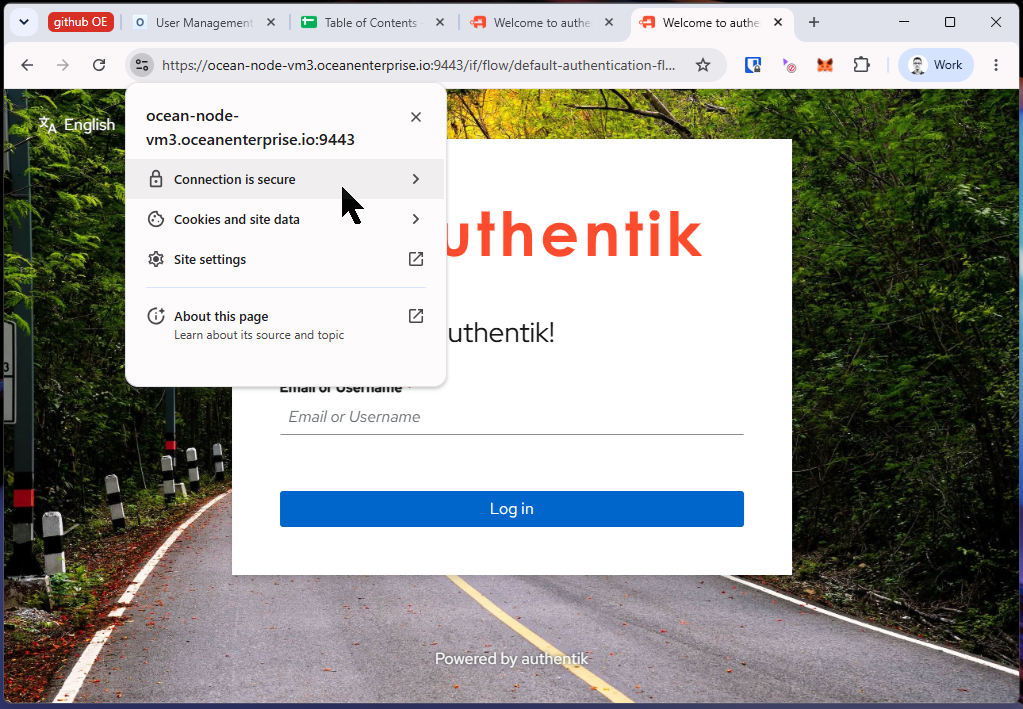
* The connection is HTTPS

<figure><img src="https://1789397093-files.gitbook.io/~/files/v0/b/gitbook-x-prod.appspot.com/o/spaces%2FH0zpgrXbeZ7u6UuCV9Gz%2Fuploads%2FNr5KQOCzfRCJu7DHvlix%2Fimage.png?alt=media&amp;token=8fee8dea-5a72-4804-8631-77e1feaf914b" alt=""><figcaption></figcaption></figure>

* and the digital certificate used for this connection is the correct one.

<figure><img src="https://1789397093-files.gitbook.io/~/files/v0/b/gitbook-x-prod.appspot.com/o/spaces%2FH0zpgrXbeZ7u6UuCV9Gz%2Fuploads%2FBop4vfmYXPa8bo8hbVvq%2Fimage.png?alt=media&amp;token=d0185f5e-b52b-4b14-8754-7c440a2fef9d" alt=""><figcaption></figcaption></figure>

## Set the Authentik server administrator account

The first time you access the Authentik server, the first-steps user interface is displayed. Go through the flow to register the administrator account (akadmin) for the Authentik server.&#x20;

With this account, you will perform all administrative tasks related to managing users and participant organizations, such as:

* onboarding participant organizations in the Central Identity Provider (Dataspace Operator Authentik server)
* creating invites to register users
* updating/deleting user profiles
* assigning users to groups

Consult the [Operational Guidelines](/operational-guidelines.md) chapter for details on how to perform these tasks.

## Create the administrator group for the SSI Wallet UI

The SSI Wallet UI can be configured to allow access only to users who belong to a designated group in the Authentik server. In a production environment, defining this administrator group is essential, as managing the organization’s DIDs and Verifiable Credentials is a critical responsibility and must be restricted to explicitly authorized users.

* Follow the instructions in the chapter [Create Admin User Group](/operational-guidelines/user-directory-management/user-group-management/create-admin-user-group.md) to create an administrator group for the SSI Wallet UI.
* After the designated SSI Wallet UI administrator user is registered in Authentik (see the [User Enrollment](/operational-guidelines/user-directory-management/user-enrolment-in-authentik.md) chapter), follow the instructions in the chapter [Assign User to User Group](/operational-guidelines/user-directory-management/user-group-management/assign-user-to-group.md) to add the user to the SSI Wallet UI administrator group.

## Onboard Dataspace Participants

For a new Participant organization to access the marketplace, its Participant Authentik server needs to be onboarded on the Dataspace Authentik server. The onboarding process involves creating a trust relationship between the two Authentik servers.&#x20;

The Dataspace Operator Administrator must follow the instructions in the chapter [Onboarding Data Space Participant](/operational-guidelines/federated-authentication/onboarding-data-space-participant-in-data-space-operator-authentik.md) to onboard new organizations to the dataspace

&#x20;

## Populate the SSI Wallet

The designated SSI Wallet UI administrator should follow the instructions in [this](/user-guides/using-the-oe-marketplace/onboarding-to-the-marketplace/setting-up-the-ssi-wallet.md) chapter to populate the SSI Wallet with the company's DIDs and Verifiable Credentials.&#x20;


---

# Agent Instructions
This documentation is published with GitBook. GitBook is the documentation platform designed so that both humans and AI agents can read, navigate, and reason over technical content effectively. Learn more at gitbook.com.

## Querying This Documentation
If you need additional information that is not directly available in this page, you can query the documentation by asking a question.

Perform an HTTP GET request on the following URL with the `ask` and `goal` query parameters:

```
GET https://docs.oceanenterprise.io/infrastructure/user-management-package/deployment-steps/post-installation-steps.md?ask=<question>&goal=<user_goal>
```

`ask` is the immediate question: it should be specific, self-contained, and written in natural language.
`goal` is what the user is ultimately trying to achieve, the reason they need the answer. Sharing it helps GitBook give you a better, more relevant answer. A goal is most helpful when it describes the outcome the user wants rather than restating the question. For example, with `ask=how do I create an API token`, a goal like `automate deployments from our CI pipeline` lets GitBook tailor the answer to that use case.

The response will contain a direct answer to the question and relevant excerpts and sources from the documentation.

Use this mechanism when the answer is not explicitly present in the current page, you need clarification or additional context, or you want to retrieve related documentation sections.
